
Signing In
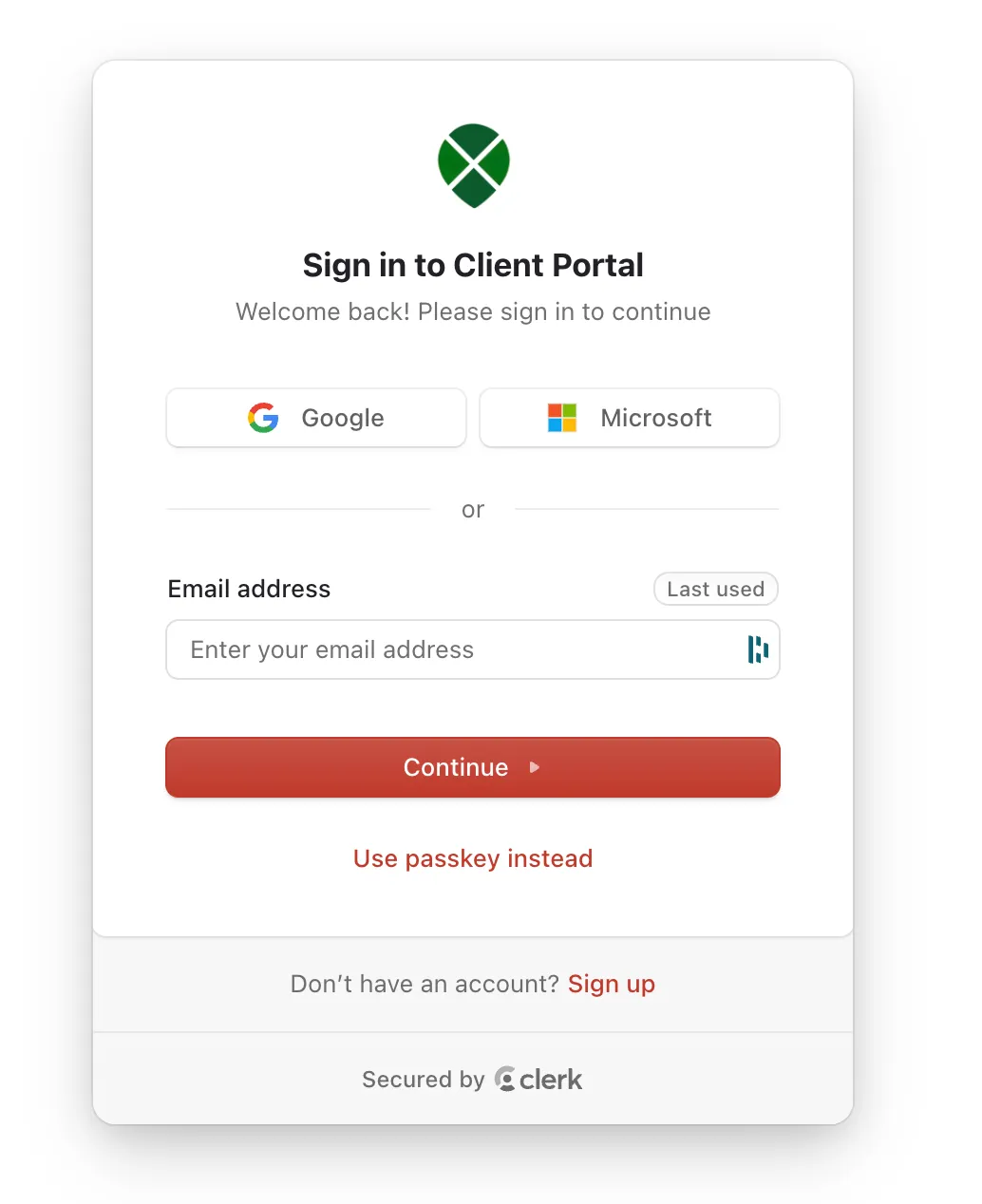
The portal uses Clerk for secure sign-in — there’s no separate password to remember if you sign in with a linked Google or Microsoft account.
First time signing in
Section titled “First time signing in”-
Get to the sign-in page in one of two ways:
- If your accountant sent you an invitation email, open it and click Accept invite.
- Otherwise, go to the portal sign-in page and click Sign up at the bottom of the card.
-
Choose how you’d like to sign in:
- Google or Microsoft — quickest, no password to set
- Email + password — set a password you’ll use going forward
-
Verify your email address if prompted.
-
You’ll land on the portal — if you’re a new client, you’ll then be guided through onboarding.
Signing in later
Section titled “Signing in later”Visit the portal sign-in page and use the same method you chose during sign-up.
Trouble signing in?
Section titled “Trouble signing in?”- “Email not recognized” — make sure you’re using the exact address your firm has on file.
- Didn’t get an invitation email? You can still sign up directly using the Sign up link on the sign-in page, or ask your accountant to resend the invite.
- Locked out — use the “Forgot password” link, or reach out to your accounting team.